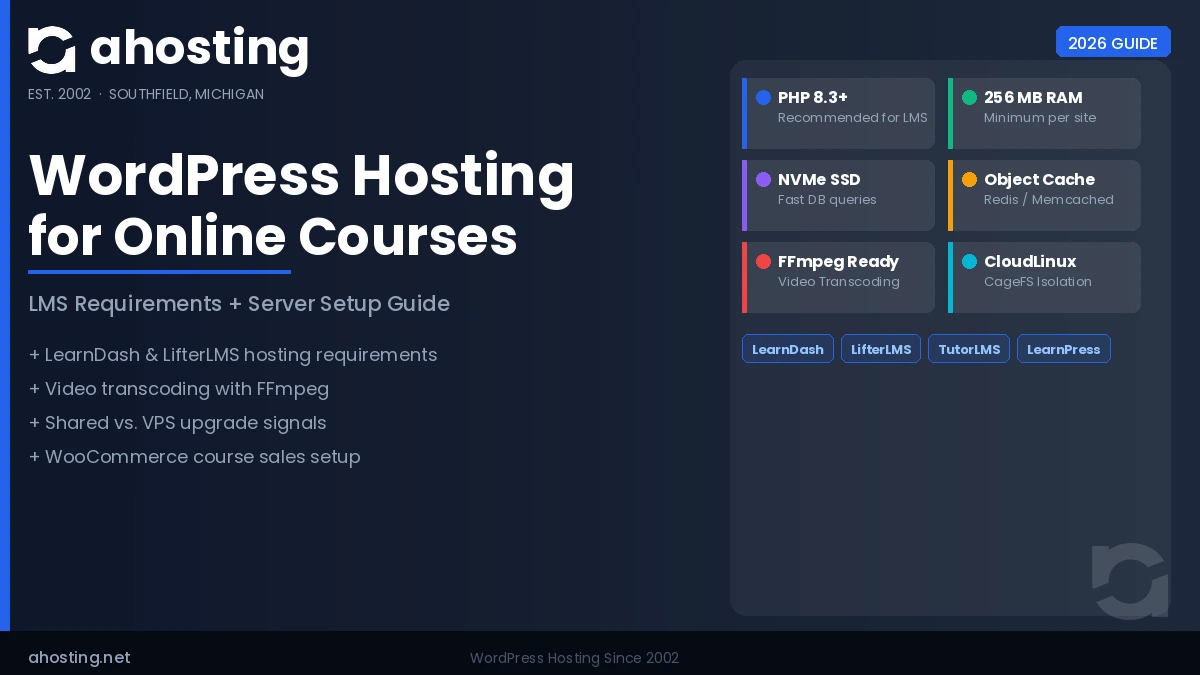
- What Makes WordPress Hosting For Online Courses Different from Standard Hosting
- Minimum Server Requirements for WordPress Hosting for Online Courses & LMS Sites in 2026
- Can Shared Hosting Run WordPress Hosting for Online Courses & LMS? The Real Answer
- Course Video Hosting: Why FFmpeg Support Changes Everything
- When to Upgrade from WordPress Hosting to a VPS: 5 Signals
- Setting Up WordPress Hosting for Online Courses: 5 Essential Hosting Steps
- First Step: Confirm Your PHP Version and Memory Limit
- Second Step: Enable Object Caching at the Server Level
- Third Step: Optimize Your Database Before Student Activity Builds
- Fourth Step: Configure Cloudflare CDN for Static Assets (Not Logged-In Pages)
- Fifth Step: Create a Staging Environment and Test Every Plugin Update There First
- WooCommerce and LMS: Selling Courses Requires Payment-Grade Hosting
- AHosting's 22-Year Foundation – The Perfect WordPress Hosting For Online Courses Hosting
- Is Your WordPress Hosting For Online Courses Ready? Pre-Launch Checklist
- Conclusion: The Right WordPress Hosting for Online Courses is your Foundation for Success
- Frequently Asked Questions: WordPress LMS Hosting
- What makes WordPress hosting for online courses different from regular WordPress hosting?
- How much RAM does a WordPress LMS site need?
- Can shared hosting run a WordPress LMS like LearnDash or LifterLMS?
- What PHP version do I need for LearnDash in 2026?
- Do I need special hosting to serve course videos on WordPress?
- When should I upgrade from WordPress shared hosting to a VPS for my course site?
- Does WooCommerce add extra hosting requirements when selling courses?
- What is object caching and why does it matter for WordPress LMS sites?
- How many students can a shared WordPress hosting plan support?
- What hosting features should I look for when launching a WordPress LMS site?
WordPress hosting for online courses is a fundamentally different infrastructure challenge from hosting a blog or a brochure site, and choosing the wrong plan before you launch will cost you students, sales, and hours of troubleshooting mid-course. This guide covers the exact server requirements your LMS site needs, the honest answer to whether shared hosting is enough, how to handle course video delivery with FFmpeg, and the five signals that tell you it is time to upgrade to a VPS.
What Makes WordPress Hosting For Online Courses Different from Standard Hosting
WordPress hosting for online courses creates a constant stream of database write activity that ordinary shared plans were not designed to absorb. Every student interaction — a lesson marked complete, a quiz submitted, a progress percentage updated, a certificate generated — writes to the WordPress database in real time. On a standard blog, most traffic is read-only: visitors load cached pages and the database barely moves. On an LMS site, every logged-in student triggers live writes with every click.
The practical result is that standard caching strategies do not work the same way. Full-page caching, which makes most WordPress sites fast, cannot cache pages for logged-in users — and all of your students are logged in. That means every dashboard load, every lesson page, and every quiz result hits your server fresh. Your hosting stack has to be ready for that.
Three infrastructure differences matter most for LMS workloads: PHP memory limits, object caching availability, and database I/O throughput. We cover each in the sections below.
Minimum Server Requirements for WordPress Hosting for Online Courses & LMS Sites in 2026
The server requirements for a WordPress LMS site start from the official WordPress 7.0 Hosting Requirements but go significantly further once you add an LMS plugin on top.
| Requirement | WordPress Minimum | LMS Recommended | Power LMS (100+ students) |
|---|---|---|---|
| PHP version | 7.4 | 8.1 | 8.3 |
| PHP memory limit | 64 MB | 256 MB | 512 MB |
| Database | MySQL 5.7 / MariaDB 10.4 | MySQL 8.0 / MariaDB 10.6 | Same |
| Storage type | HDD (any) | NVMe SSD | NVMe SSD |
| Object caching | Not required | Redis or Memcached | Redis (required) |
| Web server | Apache / Nginx | Any + LiteSpeed preferred | LiteSpeed + LSCache |
| SSL | Required | Required | Required |
PHP memory limit is the single most common LMS failure point. LearnDash, LifterLMS, and TutorLMS each load significant amounts of data into memory during course rendering. A 64 MB or 128 MB memory limit — common on budget shared hosting — causes “Allowed memory size exhausted” fatal errors under normal student activity. Always confirm the memory limit with your host before installing an LMS plugin.
Why PHP 8.3 Matters for LMS Performance in 2026: Factor 1
PHP 8.3 delivers measurably faster execution for object-heavy PHP workloads than PHP 7.4 — the kind of workload an LMS plugin produces constantly. According to benchmarks published by the PHP project and corroborated by hosting performance research, PHP 8.3 handles 14 to 20 percent more requests per second than PHP 7.4 for typical WordPress workloads. For WooCommerce course sales, the gains are even larger: roughly 23 percent higher throughput.
PHP 8.1, 8.0, and 8.2 have all reached end-of-life or are approaching it. PHP 8.3 is the safe, well-supported choice for a new LMS build in 2026.
Can Shared Hosting Run WordPress Hosting for Online Courses & LMS? The Real Answer
Shared hosting can run a WordPress LMS site — with specific conditions attached. At AHosting, we have been running WordPress sites on shared infrastructure since 2002 and have seen every configuration of LMS hosting succeed and fail. The honest answer depends on your course load, not just your plan tier.
Shared hosting works for LMS when:
- Your active concurrent student count stays below 100
- You are running a single LMS plugin (not LearnDash + WooCommerce + a membership plugin simultaneously)
- Course content is text-based or embeds external video (YouTube, Vimeo) rather than self-hosted video files
- Your host provides a 256 MB PHP memory limit and NVMe SSD storage
- Object caching (Redis or Memcached) is available on the plan
Shared hosting struggles when:
- You run course launches that spike enrollment by 50 to 100 students simultaneously
- Host video files directly on your server (without FFmpeg transcoding, large files strain both storage and CPU)
- You run WooCommerce alongside your LMS (combined database writes during a launch can saturate shared resources)
- Your host uses HDD storage instead of NVMe SSD, producing slow database queries under concurrent load
The dividing line in our 22 years of operational experience: a well-configured shared hosting plan on modern infrastructure (NVMe, LiteSpeed, PHP 8.1+, Redis) serves early-stage course creators reliably. The moment a course launch sends simultaneous signups past 80 to 100 active users, the shared environment’s resource-sharing model becomes the bottleneck.
Course Video Hosting: Why FFmpeg Support Changes Everything
Self-hosting video content on WordPress is where most course creators run into an infrastructure wall that has nothing to do with their LMS plugin. Raw video files — the .mp4 or .mov files that come off a camera or screen recorder — are large, inconsistently formatted, and incompatible with all browsers without conversion.
FFmpeg is the industry-standard open-source tool that transcodes video into web-optimized formats: H.264/AAC for broad compatibility, multiple resolutions for adaptive bitrate streaming, and compressed file sizes that reduce storage costs and load times. Without FFmpeg running at the server level, raw video is delivered as-is — which means slow loads, failed playback on certain devices, and storage bills that grow faster than your student count.
Most shared and managed WordPress hosts do not include FFmpeg. It requires dedicated server resources and configuration, which most hosting companies do not provide outside of their highest-tier VPS or dedicated plans.
AHosting’s FFmpeg hosting plans include server-side FFmpeg support alongside your WordPress environment. This means your course videos are transcoded, optimized, and served from the same hosting account as your LMS — without routing through a third-party video platform. For course creators who want full ownership of their video content and delivery, this is the configuration that makes self-hosting practical.
For a detailed breakdown of how FFmpeg integrates with video hosting workflows, see our post on using FFmpeg hosting to build audiences.
When to Upgrade from WordPress Hosting to a VPS: 5 Signals
Your shared WordPress hosting plan has a natural capacity ceiling. That ceiling is not posted in your plan’s feature list — it appears at runtime, usually during a course launch at the worst possible moment. Recognizing the upgrade signals before you hit the wall is the difference between a planned migration and an emergency one.
At AHosting, we have watched these five patterns consistently precede the decision to upgrade:
Signal 1: Concurrent Active Students Exceed 100
Shared hosting resource pools are designed for burst traffic, not sustained concurrent load. A course launch that enrolls 80 to 120 students in a two-hour window — all logging in, loading lesson pages, and submitting quizzes simultaneously — creates a sustained database and PHP execution load that shared infrastructure cannot absorb cleanly. The first symptoms are slow admin dashboard responses and quiz submission timeouts. By the time your students notice, the damage to your course experience is done.
Signal 2: TTFB Climbs Above 600 Milliseconds
Time to First Byte (TTFB) above 600 ms on a logged-in student page means your server is spending too long processing each request before it sends the first byte back. This is a database I/O problem at its core. On NVMe SSD shared hosting with Redis enabled, TTFB should sit below 300 ms even under moderate concurrent load. If it consistently drifts higher, your shared environment’s resources are being contended by other accounts on the same server.
Signal 3: cPanel Resource Usage Logs Show CPU at 80 Percent or Higher
Your cPanel → Metrics → Resource Usage section shows real-time CPU and memory utilization. LMS sites that regularly push CPU above 70 to 80 percent during student activity windows are operating at the limit of their shared container. CloudLinux, which AHosting runs on all shared plans, enforces hard per-account CPU limits — which means resource spikes beyond the limit are queued, not served instantly.
Signal 4: WooCommerce Checkout Timeouts During Course Launches
If WooCommerce checkout pages time out or return errors specifically during enrollment windows, the problem is almost always database write saturation. WooCommerce and an LMS plugin running simultaneously during a launch spike can generate hundreds of concurrent database write operations. A VPS with dedicated CPU and RAM handles this workload without affecting the student experience on the LMS side.
Signal 5: Five or More Video Courses with Self-Hosted Files
Each self-hosted video course adds storage overhead, media library load, and streaming bandwidth pressure to your hosting environment. Shared hosting plans with storage and bandwidth limits will begin to strain at five or more active video courses with substantial enrollment. At this scale, either AHosting’s VPS hosting plans or our FFmpeg hosting tier — which handles video transcoding and delivery separately from your core WordPress environment — is the appropriate infrastructure choice.
| Metric | Shared Hosting Comfortable | Upgrade Recommended |
|---|---|---|
| Concurrent active students | Up to 100 | 100+ |
| TTFB (logged-in pages) | Under 300 ms | 600 ms+ |
| cPanel CPU usage | Under 60% | 80%+ consistently |
| Checkout timeout rate | 0% | Any consistent errors |
| Video courses hosted | 1–4 | 5+ |
| Monthly enrolled students | Under 500 | 500+ |
Setting Up WordPress Hosting for Online Courses: 5 Essential Hosting Steps
Getting your WordPress hosting for online courses configured correctly before you install your LMS plugin saves hours of troubleshooting later. These five steps are the ones we walk through with every new LMS hosting customer.
First Step: Confirm Your PHP Version and Memory Limit
In cPanel, go to Software → Select PHP Version. Confirm you are running PHP 8.1 or higher — ideally PHP 8.3. Then open PHP Settings and locate memory_limit. It should be set to 256M or higher. If your host has locked the memory limit below 256M, contact support before installing an LMS plugin.
Second Step: Enable Object Caching at the Server Level
Object caching for WordPress requires server-side support — Redis or Memcached must be installed and running on your host’s server before any plugin can connect to it. Ask your host directly: “Is Redis or Memcached available on my plan?” If yes, install the Redis Object Cache plugin by Till Krüss from the WordPress.org plugin directory, then activate it from Settings → Redis. If Redis is not available on shared hosting, it is one of the primary reasons to move to a VPS.
Third Step: Optimize Your Database Before Student Activity Builds
LMS plugins write heavily to the WordPress options table and generate post meta at scale. Before you launch, run an initial database optimization using WP-CLI or a plugin like WP-Optimize to clean expired transients and post revisions. Schedule a weekly database optimization — LMS databases accumulate bloat faster than standard WordPress sites because every student progress update and quiz result is a database row.
Fourth Step: Configure Cloudflare CDN for Static Assets (Not Logged-In Pages)
Cloudflare’s CDN caches static assets — images, CSS, JavaScript — extremely well and should be enabled on all course sites. However, confirm that Cloudflare is configured to bypass caching for logged-in users and for WooCommerce cart and checkout pages. The Cloudflare WordPress plugin and W3 Total Cache’s CDN integration handle this automatically, but verify the bypass rules are active before your first launch.
Fifth Step: Create a Staging Environment and Test Every Plugin Update There First
Plugin conflicts are the leading cause of LMS site failures on shared hosting. A staging environment — a copy of your live site running on a separate subdomain or directory — lets you test LearnDash, LifterLMS, WooCommerce, and security plugin updates before applying them to production. This is particularly important for LMS sites because a broken quiz engine or a failed checkout page directly affects paying students. AHosting’s cPanel environment supports staging subdomain configuration out of the box.
Course Hosting Finder
Answer 4 quick questions to find the right AHosting plan for your online course site.
1. How many active students do you expect at launch?
WooCommerce and LMS: Selling Courses Requires Payment-Grade Hosting
Adding WooCommerce to your WordPress LMS site changes the hosting equation materially. Course sales through WooCommerce mean every enrollment goes through a checkout process that writes to the database at least five times per transaction: the cart is created, the order is placed, the payment gateway is called, the order status is updated, and the LMS plugin grants course access — all in sequence, sometimes within three seconds of the student clicking Buy.
During a course launch window, you may have 50 to 100 students completing this sequence simultaneously. Without object caching and sufficient PHP memory, the checkout queue backs up, producing errors that cost you real revenue.
AHosting's WooCommerce hosting plans are configured with the resource isolation and caching infrastructure that checkout-heavy LMS sites need. The plans run on CloudLinux, which guarantees that a traffic spike from a neighboring account on the shared server cannot borrow your CPU or RAM — a critical guarantee during the window when your launch is live and your students are paying.
For course creators who are also managing multiple client sites or building a portfolio of online course products, AHosting's reseller hosting plans allow you to host multiple independent WordPress + WooCommerce + LMS installations under one cPanel/WHM account, each with its own isolated container.
AHosting's 22-Year Foundation - The Perfect WordPress Hosting For Online Courses Hosting
We have been running WordPress hosting since WordPress was in its earliest versions. That history is not just a marketing line — it means AHosting has seen every configuration of WordPress, WooCommerce, and LMS hosting succeed, fail, and recover.
Our infrastructure runs LiteSpeed Web Server with LSCache, CloudLinux with CageFS resource isolation, PHP 8.1 as the current production standard (with PHP 8.3 available), and NVMe SSD storage across our shared and VPS tiers. We run cPanel and WHM across all plans, which means the setup path for an LMS site is the same documented cPanel workflow your developers already know.
For online course creators specifically, the three AHosting products that matter are:
- WordPress hosting plans — the starting point for new LMS builds with 1–100 students
- WooCommerce hosting plans — optimized for checkout-heavy course sales
- FFmpeg hosting plans — for course creators self-hosting video on their own server
Is Your WordPress Hosting For Online Courses Ready? Pre-Launch Checklist
Work through this checklist before you run your first course launch:
Server Configuration
- PHP version is 8.1 or higher (8.3 preferred)
- PHP memory limit is set to 256 MB or higher
- MySQL 8.0 or MariaDB 10.6 is the active database version
- NVMe SSD storage is confirmed (ask your host if unsure)
Caching and Performance
- Redis or Memcached is available and configured for object caching
- W3 Total Cache or LiteSpeed Cache is installed and active
- Cloudflare is configured with logged-in user bypass rules active
- TTFB on a logged-in student page is below 300 ms
LMS Plugin Readiness
- LearnDash, LifterLMS, or your chosen LMS plugin is on the latest version
- WooCommerce (if used for course sales) is on the latest version
- PHP Compatibility Checker has been run — no critical warnings
- Staging environment created and used to test the latest plugin updates
Video and Media
- Course video files have been transcoded (FFmpeg or third-party tool)
- Video files are under 500 MB per lesson where possible
- CDN is configured to serve static media (images, CSS, JS)
- If self-hosting video: FFmpeg support confirmed with your host
Conclusion: The Right WordPress Hosting for Online Courses is your Foundation for Success
WordPress hosting for online courses is not simply a matter of picking any WordPress plan and installing LearnDash. The database write patterns, concurrent user load, video delivery requirements, and WooCommerce checkout pressure that LMS sites generate require specific server-level features that generic shared hosting often lacks: sufficient PHP memory, object caching, NVMe SSD storage, and — if you plan to self-host videos — FFmpeg support.
The good news is that a well-configured shared hosting plan covers the needs of most early-stage course creators. The upgrade path to VPS is clear and predictable. And for the specific combination of WordPress, WooCommerce course sales, and self-hosted video, AHosting has been running the infrastructure since 2002.
Frequently Asked Questions: WordPress LMS Hosting
What makes WordPress hosting for online courses different from regular WordPress hosting?
LMS sites generate far more database writes than standard WordPress blogs. Every quiz submission, lesson completion, course progress update, and student login triggers database transactions that a basic shared plan was not designed to absorb. WordPress hosting for online courses needs a higher PHP memory limit (256 MB minimum), object caching support, and NVMe SSD storage to keep those transactions fast under concurrent load.
How much RAM does a WordPress LMS site need?
A WordPress LMS site needs at least 256 MB of PHP memory per site for smooth operation with plugins like LearnDash or LifterLMS. For sites with 100 or more concurrent students, 512 MB or more is advisable. The memory limit is a hosting-level setting — check your cPanel PHP Settings or ask your host before installing an LMS plugin.
Can shared hosting run a WordPress LMS like LearnDash or LifterLMS?
Yes, shared hosting can run a WordPress LMS for early-stage course sites with fewer than 100 active students, provided the host offers PHP 8.1 or higher, a 256 MB PHP memory limit, and NVMe SSD storage. Once you cross 100 concurrent users, process more than 30 quiz submissions per minute, or add video courses, VPS hosting becomes the more reliable choice.
What PHP version do I need for LearnDash in 2026?
LearnDash 4.x and above requires PHP 7.4 as a minimum, but the LearnDash team recommends PHP 8.1 or higher for full feature compatibility and performance in 2026. PHP 8.3 is the recommended version according to WordPress.org and delivers meaningful speed improvements for LMS database-heavy operations.
Do I need special hosting to serve course videos on WordPress?
Self-hosting course videos on WordPress requires FFmpeg support at the server level for video transcoding, format conversion, and delivery optimization. Without FFmpeg, raw video files are served as-is — large, slow, and incompatible with all browsers. AHosting FFmpeg hosting plans include server-side FFmpeg support specifically for video transcoding workloads.
When should I upgrade from WordPress shared hosting to a VPS for my course site?
The five clearest signals that your course site has outgrown shared hosting are: more than 100 concurrent active students, consistent TTFB above 600 ms, CPU usage hitting 80 percent or more in your cPanel resource log, WooCommerce checkout timeouts during course launches, and five or more live video courses consuming significant storage and bandwidth simultaneously.
Does WooCommerce add extra hosting requirements when selling courses?
WooCommerce adds significant database write pressure on top of the LMS plugin activity. Each checkout creates an order record, triggers payment gateway API calls, and logs customer data simultaneously. Object caching (Redis or Memcached), a PHP memory limit of at least 512 MB, and a host with isolated resources prevents checkout slowdowns from affecting your students course experience.
What is object caching and why does it matter for WordPress LMS sites?
Object caching stores the results of repeated database queries in memory using Redis or Memcached, so your server does not re-run the same query each time a student loads their dashboard. For LMS sites where every student sees a unique progress state, object caching dramatically reduces database load compared to standard page caching, which cannot cache logged-in user views.
How many students can a shared WordPress hosting plan support?
A well-configured shared WordPress hosting plan with PHP 8.1, 256 MB memory, and an object cache can support 50 to 100 concurrent active students reliably. Sites with large course libraries, video content, and active WooCommerce selling consistently exceed these limits and experience checkout timeouts or slow dashboards once active enrollment grows past that threshold.
What hosting features should I look for when launching a WordPress LMS site?
The essential hosting features for a WordPress LMS site are: PHP 8.1 or higher, a 256 MB or higher PHP memory limit, NVMe SSD storage, object caching support (Redis or Memcached), CloudLinux or similar resource isolation so other accounts do not affect your performance, daily backups, a staging environment for testing plugin updates, and SSL included. Bonus: FFmpeg support for self-hosted video courses.